
Why Developers Actually Switch Clipboard Manager Apps (Maccy, Alfred, Paste → Clibo)
Honest comparison of Maccy, Alfred, Paste, and Clibo clipboard manager apps. Real trade-offs, no strawmen — including when you should stay with your current tool.
Clibo Engineering
Engineering & Systems Design
Table of Contents (9 sections)
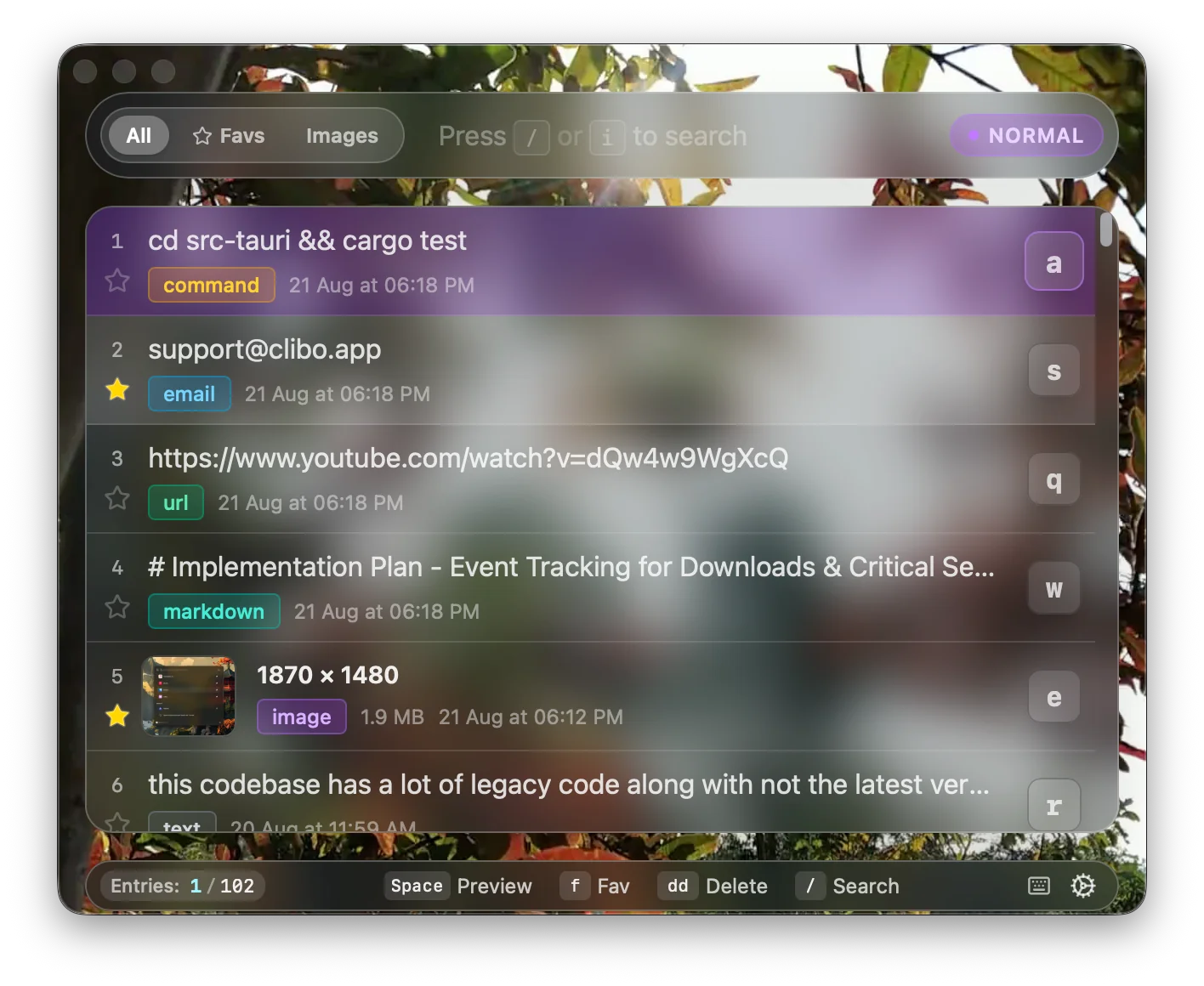
Every few months, the same thread surfaces on Hacker News or r/macapps: “I’ve been using Maccy for years — is there something better?” The replies split into camps. Maccy loyalists. Raycast converts. Paste enthusiasts defending their subscription. Alfred holdouts who remember when Spotlight was worse than useless.
Most “alternatives” posts rank clipboard manager apps by star counts or feature bullet lists. This one doesn’t. Instead, we’ll walk through the specific friction points that actually trigger a switch — and be explicit about when your current tool is the right call.
A note on “Clipper”: If you landed here searching for “clipper clipboard manager app,” you’ve likely encountered a legacy or niche utility. There is no widely maintained macOS app called Clipper in 2026. The comparisons below cover the tools that dominate active developer usage: Maccy, Alfred, Raycast, Paste, and Clibo.
What Each Clipboard Manager App Actually Trades Away
Every clipboard tool makes architectural bets. Those bets determine what it’s fast at, what it can’t do, and what it costs you in resources or money. Here’s the honest breakdown.
For granular benchmark data (RAM, invocation latency, storage subsystem), see the full comparison matrix — this post focuses on the workflow implications of those numbers.
The Maccy Clipboard Manager: Why It Works, and Where It Stops
Maccy is an excellent piece of software. It deserves its popularity:
- Free and open-source (Swift/AppKit, MIT licensed).
- ~18 MB RAM, native macOS look and feel.
- Zero telemetry, zero cloud sync — your data stays on disk.
- Supports pinning items, basic fuzzy search, and customizable hotkeys.
The friction points that trigger switches:
-
No preview pane. Maccy renders clips as truncated single-line menu items. If you copied a 40-line Rust function or a JSON payload, you’re pasting blind. You can’t visually confirm which of three similar-looking snippets is the one you need.
-
No image support. Maccy is text-only. If your workflow involves copying screenshots, Figma exports, or terminal screenshots, those clips silently vanish from history.
-
No Vim-style navigation. You navigate with arrow keys or mouse clicks through a standard macOS menu. If you live in Neovim, Helix, or VSCode with Vim bindings, reaching for arrow keys is a context switch.
-
No syntax highlighting. Copied code renders as monochrome plain text in the menu. You can’t distinguish a JavaScript snippet from a shell command at a glance.
-
No credential filtering. Maccy doesn’t inspect
org.nspasteboard.ConcealedTypeor other password manager concealment flags. Passwords from 1Password or Bitwarden get stored in history like any other string.
Stay with Maccy if:
- You only copy plain text and short strings.
- You want zero cost, zero setup, and a native menu-bar experience.
- You don’t need preview, images, or Vim bindings.
- Your password manager’s own clipboard clearing timer is sufficient for your security posture.
Maccy does one thing well and keeps the scope intentionally minimal. That’s a legitimate design choice, not a failing.
Alfred Clipboard Alternative: When the Powerpack Isn’t Enough
Alfred has been the macOS power-user launcher for over a decade. Its Clipboard History (Powerpack feature) is:
- ~25 MB RAM, highly optimized Objective-C.
- Sub-50ms invocation — Alfred’s speed is genuinely impressive for its age.
- Merged snippet expansion and clipboard search in one interface.
- Local storage, no cloud sync.
The friction points:
-
Clipboard is a feature, not the product. Alfred’s clipboard history is one tab inside a general-purpose launcher. The UI, search syntax, and keybindings are designed for launching apps and running workflows — not for navigating hundreds of clipboard entries efficiently.
-
No dedicated image tab. Alfred can store images in history, but browsing them is awkward compared to a purpose-built clipboard viewer with resolution and file-size metadata.
-
Dated visual design. Alfred’s interface hasn’t had a major design refresh in years. If you use a modern macOS setup with frosted-glass UI conventions, Alfred’s chrome feels anachronistic.
-
Powerpack licensing. Clipboard history requires the £34+ Powerpack. If you already own it for workflows and snippets, the clipboard comes “free.” If you only need clipboard history, it’s an expensive unlock for a single feature.
Stay with Alfred if:
- You already own the Powerpack and use Alfred heavily for workflows, snippets, and app launching.
- Clipboard history is a nice-to-have addon, not your primary use case.
- You value a decade of proven stability over modern UI aesthetics.
Paste Alternative Mac: When iCloud Sync Creates Problems
Paste is the most visually polished clipboard manager on macOS:
- Beautiful card carousel UI with color-coded pinboards.
- iCloud sync across Mac, iPad, and iPhone.
- Rich-media support with preview thumbnails.
The friction points:
-
Subscription pricing. Paste costs ~$14.99/year. For a utility that runs in the background, recurring payments feel misaligned with the value model — especially when comparable features exist as one-time purchases.
-
Cloud sync is a liability, not just a feature. Every clip you copy — including database URLs, API keys, JWT tokens, and customer PII — syncs through iCloud servers. In environments governed by SOC2, HIPAA, or GDPR, this creates an unvetted data subprocessor risk. (We covered this in detail in our clipboard security analysis.)
-
Animation-heavy UI. Paste’s carousel transitions are designed for visual appeal, not keyboard speed. For developers who measure tool efficiency in keystrokes-per-action, the animations add perceptible latency to clip selection.
-
No modal navigation. Paste is mouse-and-arrow-key oriented. There’s no j/k movement, no / search shortcut, no dd delete.
Stay with Paste if:
- Cross-device clipboard sync between Mac and iOS is a hard requirement.
- Your clipboard is primarily visual content (design assets, screenshots, color swatches).
- You’re not handling sensitive credentials or operating under strict compliance frameworks.
- You prefer visual browsing over keyboard-driven selection.
Where Clibo Fits — and Where It Doesn’t
Clibo was built specifically for developers who use Vim-style editors and care about local-first privacy. The architectural bets are intentional:
- Rust backend + Tauri v2 → sub-50ms cold launch, ~20 MB RAM.
- Full modal navigation: j/k movement, gg/G jump, / or i search, dd delete, u undo, f favorite, 1–9 direct jump.
- 100% offline: zero cloud, zero telemetry. Verify it yourself with
lsof -nP -p $(pgrep Clibo) | grep TCP. - Image history with resolution, file size, and timestamp metadata in a dedicated tab.
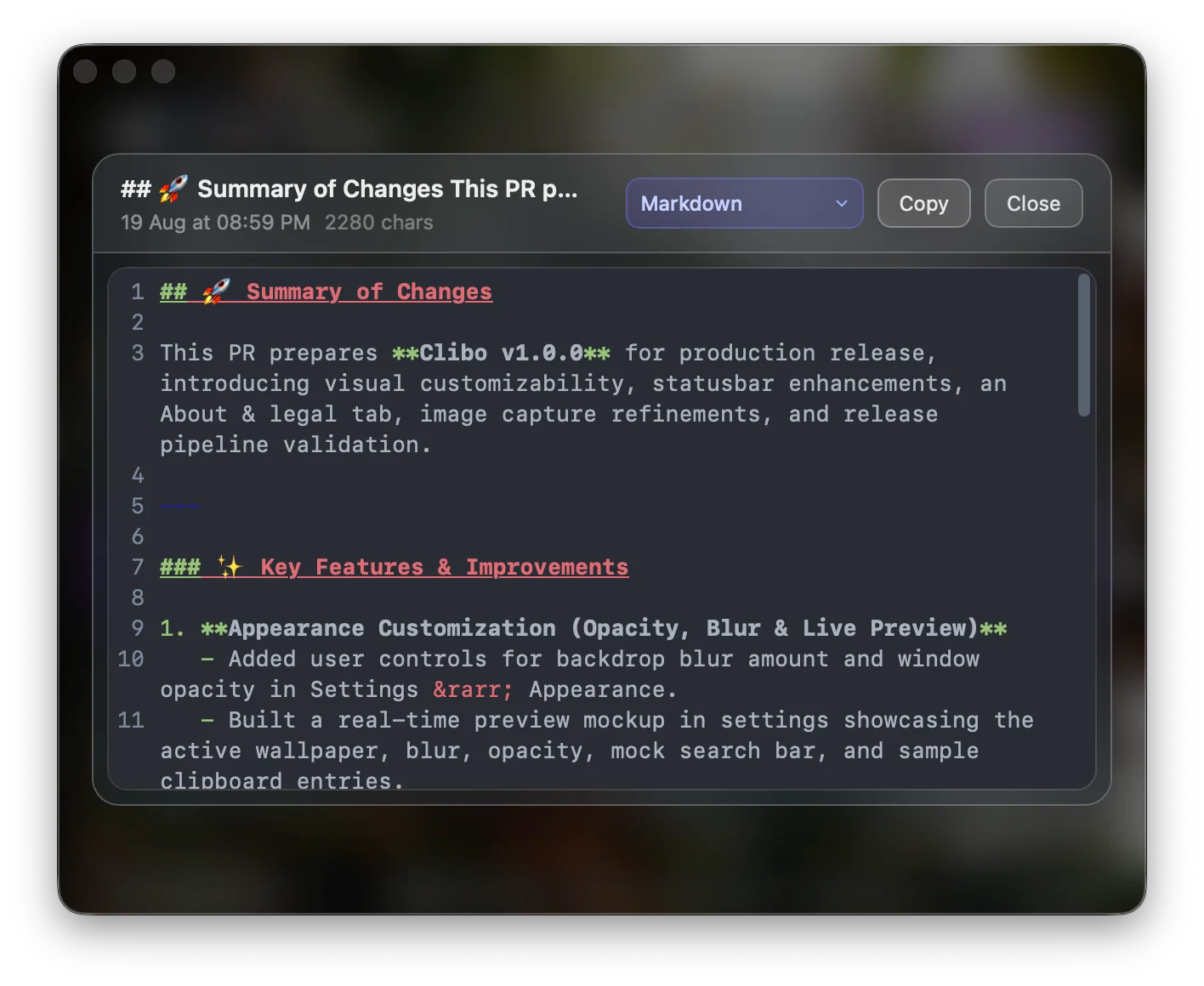
- Syntax-highlighted preview for Markdown, Rust, JavaScript, JSON, and shell before pasting.
- Credential auto-blocking: inspects
ConcealedType,AutoGeneratedType, and password manager bundle IDs. Per-app exclusion rules for 1Password, Bitwarden, KeePass, etc. - One-time purchase: $19 Solo, $29 Pro (up to 3 Macs, lifetime updates), $89 Team. 14-day free trial.
Where Clibo is not the right choice:
- No cross-device sync. If you need clipboard history on your iPhone or iPad, Clibo can’t do it. Paste or Universal Clipboard is your option.
- Vim bindings are polarizing. If you don’t use modal editing, Clibo’s keybinding model will feel foreign rather than fast. Maccy or Raycast’s standard shortcuts may suit you better.
- Paid software. If your budget is literally $0 and you don’t need preview or images, Maccy is the correct choice.
Switching Cost: What It Actually Takes
Switching clipboard managers isn’t like switching IDEs. There’s no config migration, no plugin ecosystem to rebuild. The real costs are:
- Muscle memory for the hotkey. You’ll remap your summon shortcut (Clibo uses double-⌥ by default) and spend ~2 days before it’s automatic.
- History doesn’t transfer. Your existing clipboard history stays in the old tool’s database. Clibo starts recording from the moment you install it.
- Learning modal navigation (if coming from a non-Vim tool). Budget 30 minutes with the Vim keybindings guide to internalize j/k///dd.
That’s it. No accounts to create, no cloud services to connect, no subscription to manage. Install the .dmg, grant Accessibility permissions, and it’s running.
About the Clibo Research Team
We build tools for developers who care deeply about local-first software, macOS systems engineering, and keyboard-centric productivity. Have thoughts or questions on this article? Feel free to reach out via support@clibo.app.
Related Technical Essays
View all →The 2026 Mac Clipboard Manager Comparison Matrix: Speed, Privacy & Workflow
An objective, technical benchmark comparing Maccy, Raycast, Paste, Alfred, and Clibo across memory usage, invocation latency, privacy, and keyboard navigation.
How macOS Clipboard Architecture Works (and How to Master Clipboard History)
A deep technical dive into the macOS pasteboard subsystem, pbcopy/pbpaste CLI pipelines, daemon troubleshooting, and modern clipboard history management.