
How macOS Clipboard Architecture Works (and How to Master Clipboard History)
A deep technical dive into the macOS pasteboard subsystem, pbcopy/pbpaste CLI pipelines, daemon troubleshooting, and modern clipboard history management.
Clibo Engineering
Engineering & Systems Design
Updated September 17, 2026
Table of Contents (20 sections)
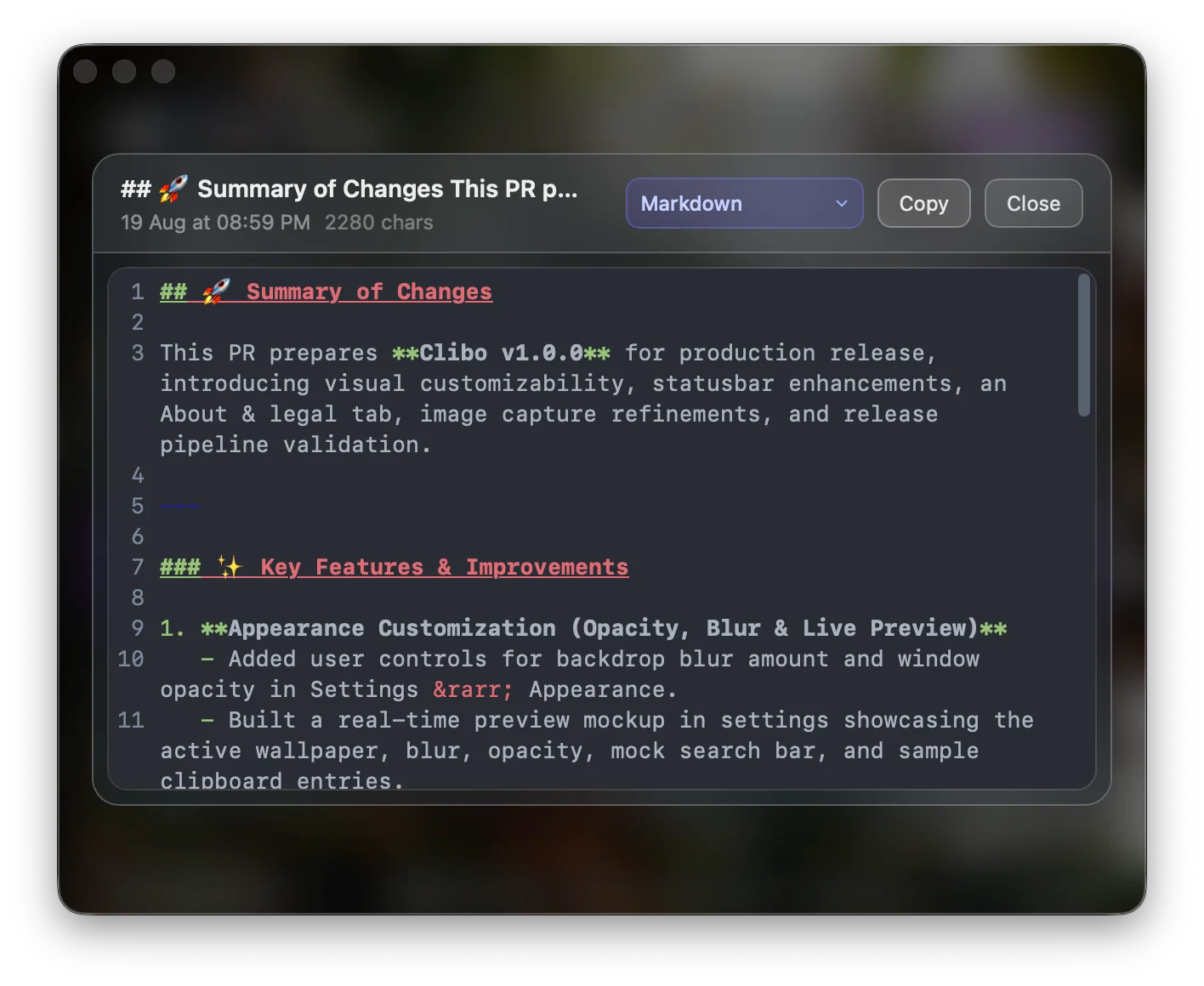
If you develop on macOS, you interact with the system clipboard dozens of times an hour. You press ⌘C in your editor, switch to your browser, copy an API token, and immediately realize the stack trace you copied ten seconds ago has been irrevocably wiped out.
macOS ships with a single-slot clipboard architecture. There is no native clipboard history viewer, no built-in persistence across reboots, and no interface to retrieve overwritten clips.
To understand why this is—and how to fix it effectively—we need to look under the hood at how macOS handles copied data, explore built-in command-line utilities, troubleshoot clipboard subsystem failures, and evaluate how modern clipboard history engines operate.
Key Takeaways (TL;DR)
- Architecture: macOS manages copied data via the
NSPasteboardserver (pboarddaemon). It holds only the most recent transaction.- Terminal Mastery: You can manipulate clipboard data directly from shell pipelines using
pbcopyandpbpaste.- Subsystem Fixes: If your Mac clipboard freezes or stops syncing, executing
killall pboardrestarts the daemon instantly without a reboot.- History Solutions: Retaining previous clips requires an event-driven background utility that caches pasteboard change count increments into local storage.
Quick Answers: Clipboard History on Mac
The technical architecture deep-dive continues below. If you need a direct answer first, start here.
How to See Clipboard History on Mac
macOS does not have a built-in clipboard history viewer — it stores only your single most recent copy. To see previous clips, you need a third-party clipboard manager that monitors the system NSPasteboard in the background and caches each new entry to a local database. Once installed, summon the manager’s overlay (e.g., double-⌥ in Clibo) to browse, search, and re-paste any item from your full history.
How to View Clipboard History on Mac
Open a clipboard history app and invoke its global hotkey. The app displays a searchable, scrollable list of every text snippet, image, and link you’ve copied — stored locally on your Mac. You can filter by content type, search with keywords or regex, and preview entries before pasting. Without such a tool, macOS only retains the last thing you copied; everything prior is overwritten and unrecoverable.
How to Access Clipboard History on Mac
Install a clipboard manager, grant it Accessibility permissions in System Settings → Privacy & Security, and it begins recording automatically. Access your history anytime via a global keyboard shortcut. Lightweight options like Maccy (free, open-source) show history in a menu-bar dropdown. Tools like Clibo provide a full overlay with Vim-style j/k navigation, syntax-highlighted preview, and image support.
How to Check Clipboard History on Mac
To check what you’ve previously copied, open your clipboard manager and scroll or search through entries. Each entry shows the copied content, the source app, and a timestamp. You can also check your current clipboard contents from Terminal without any extra software by running pbpaste — though this only shows the single most recent item, not your history. For history, a dedicated tool is required.
How to Find Clipboard History on Mac
Your clipboard history lives in the local database of whatever clipboard manager you use — typically stored in ~/Library/Application Support/ under the app’s directory. To find a specific clip, open the manager and use its search function. Clibo supports both keyword and regex search across text, code, links, and images. Maccy provides basic fuzzy search. Without a manager running, there is no history to find — macOS doesn’t save it.
Does Mac Have a Built-In Clipboard Manager?
No. As of macOS Sequoia, Apple provides no native clipboard history. The system clipboard (NSPasteboard) holds exactly one item at a time — each new copy overwrites the last. Apple’s Universal Clipboard syncs that single item across devices via iCloud Handoff, but it doesn’t retain previous entries. To get multi-item clipboard history, you need a third-party clipboard manager running in the background.
1. Under the Hood: The macOS NSPasteboard Architecture
The clipboard in macOS is not a simple string variable. It is a shared operating system service called the Pasteboard Server, accessed programmatically through AppKit’s NSPasteboard API.
When an application copies data, it writes an NSPasteboardItem containing multiple representation types for the same content. For example, when you copy formatted text from Safari, the pasteboard holds:
+-------------------------------------------------------------+
|                     NSPasteboard Item                       |
+-------------------------------------------------------------+
|  1. public.utf8-plain-text  -> "const apiKey = 'sk_live_...'" |
|  2. public.html             -> "<span class='token'>...</span>"|
|  3. public.rtf              -> "{\rtf1\ansi\ansicpg1252...}"   |
+-------------------------------------------------------------+
When you paste into a plain-text terminal, the terminal requests public.utf8-plain-text. When you paste into Apple Pages or Google Docs, the rich text editor reads public.html or public.rtf to preserve font styling and colors.
Why macOS Doesn’t Store History Natively
The pasteboard architecture dates back to NeXTSTEP in the late 1980s. It was designed as an inter-process communication (IPC) conduit for immediate data transfer between two running applications, not a persistent database.
Every time a write operation occurs, the pasteboard’s changeCount integer increments, and all previous references in NSPasteboard.general are replaced. Apple does offer Universal Clipboard via iCloud Handoff, but it still operates strictly on a single-item model.
2. Advanced Terminal Clipboard Pipelines
macOS includes two native command-line binaries that interact directly with the pasteboard server: pbcopy and pbpaste.
Integrating these into your shell scripts and daily terminal workflows allows you to bypass mouse-driven copy-paste entirely:
1. Copying Command Output Directly to Clipboard
Instead of highlighting terminal output with your trackpad:
# Copy your public SSH key directly
cat ~/.ssh/id_ed25519.pub | pbcopy

# Copy current working directory path
pwd | tr -d '\n' | pbcopy

# Copy git commit SHA
git rev-parse HEAD | pbcopy
2. Processing and Transforming Clipboard Content
You can pull clipboard contents into shell filters and write them back cleaned:
# Format and prettify minified JSON currently in your clipboard
pbpaste | jq . | pbcopy

# Strip all rich-text formatting and sanitize to pure plain text
pbpaste | pbcopy

# Count lines, words, and characters of copied text
pbpaste | wc
3. Stream URL Encoded Strings
# URL-encode copied text using python
pbpaste | python3 -c "import urllib.parse, sys; print(urllib.parse.quote(sys.stdin.read().strip()))" | pbcopy
3. Diagnosing When Mac Clipboard is Not Working
Occasionally, the macOS pasteboard server hangs. You press ⌘C, but pasting produces older text, or the system beachballs during paste operations.
This typically happens when a background app locks the pasteboard or when the pboard daemon encounters a memory leak. Here is how to diagnose and fix it:
Step 1: Force Restart the Pasteboard Daemon
You do not need to restart your Mac. Terminating pboard causes launchd to immediately respawn a clean instance:
# Kill the running pasteboard daemon
killall pboard
If you are running macOS 13 Ventura, Sonoma, or Sequoia and killall doesn’t clear the lock, trigger launchctl:
launchctl kickstart -k system/com.apple.pboardStep 2: Check for Process Pasteboard Locking
To identify which application is currently holding or polling the pasteboard:
# Stream pasteboard log messages in real time
log stream --predicate 'subsystem == "com.apple.pboard"' --info
4. How Modern Clipboard Managers Implement History
Because macOS does not retain previous pasteboard items, third-party utilities must observe the system pasteboard continuously. There are three primary architectural approaches:
| Metric / Mechanism | Polling Timer (NSTimer) |
Event-Tap Notification | Rust changeCount Event Loop |
|---|---|---|---|
| CPU Wakeups | High (~10-50 wakeups/sec) | Low (Hook overhead) | Minimal (Sub-millisecond poll on active thread) |
| Latency | 200ms - 500ms | Immediate | < 5ms |
| Crash Risk | Low | High (blocks window server) | Isolated in native worker thread |
| Typical App | Legacy Electron Apps | Objective-C Tools | Modern Systems Utilities (e.g. Clibo) |
The changeCount Loop Pattern
A high-performance clipboard engine monitors NSPasteboard.general.changeCount. When the integer increments:
- It reads the raw payload from the pasteboard buffer.
- It inspects metadata tags (such as
org.nspasteboard.ConcealedTypeto ignore passwords). - It indexes the text into a local SQLite database using Full-Text Search (
FTS5). - It presents an overlay with instant keyword search when triggered by a global hotkey.
5. What to Look for in a Clipboard Manager
When selecting a tool to upgrade your Mac clipboard workflow, prioritize these four criteria:
- Local-Only Storage: Never use a clipboard manager that silently syncs your clips to an external cloud database unless end-to-end encryption with zero-knowledge keys is provable.
- Sub-50ms Invocation: A clipboard manager should feel like a native OS HUD. If opening the search panel takes more than 100ms, it slows down your typing cadence.
- Modal Keyboard Navigation: Reaching for a trackpad to click through history undermines the productivity gain. Look for tools supporting j/k or arrow navigation with inline search.
- App Exclusion Rules: The manager must allow you to block password managers (1Password, Bitwarden, KeePassXC) and private browsing windows from history capture.
Summary
The macOS single-item clipboard is a relic of legacy IPC design. While command-line tools like pbcopy and pbpaste unlock immense scriptability in terminal environments, mastering your clipboard history across IDEs, browsers, and documentation requires a dedicated local-first clipboard manager.
By using local SQLite indexing and native keyboard-driven navigation, you can eliminate copy-paste friction while keeping sensitive credentials strictly on your machine.
About the Clibo Research Team
We build tools for developers who care deeply about local-first software, macOS systems engineering, and keyboard-centric productivity. Have thoughts or questions on this article? Feel free to reach out via support@clibo.app.
Related Technical Essays
View all →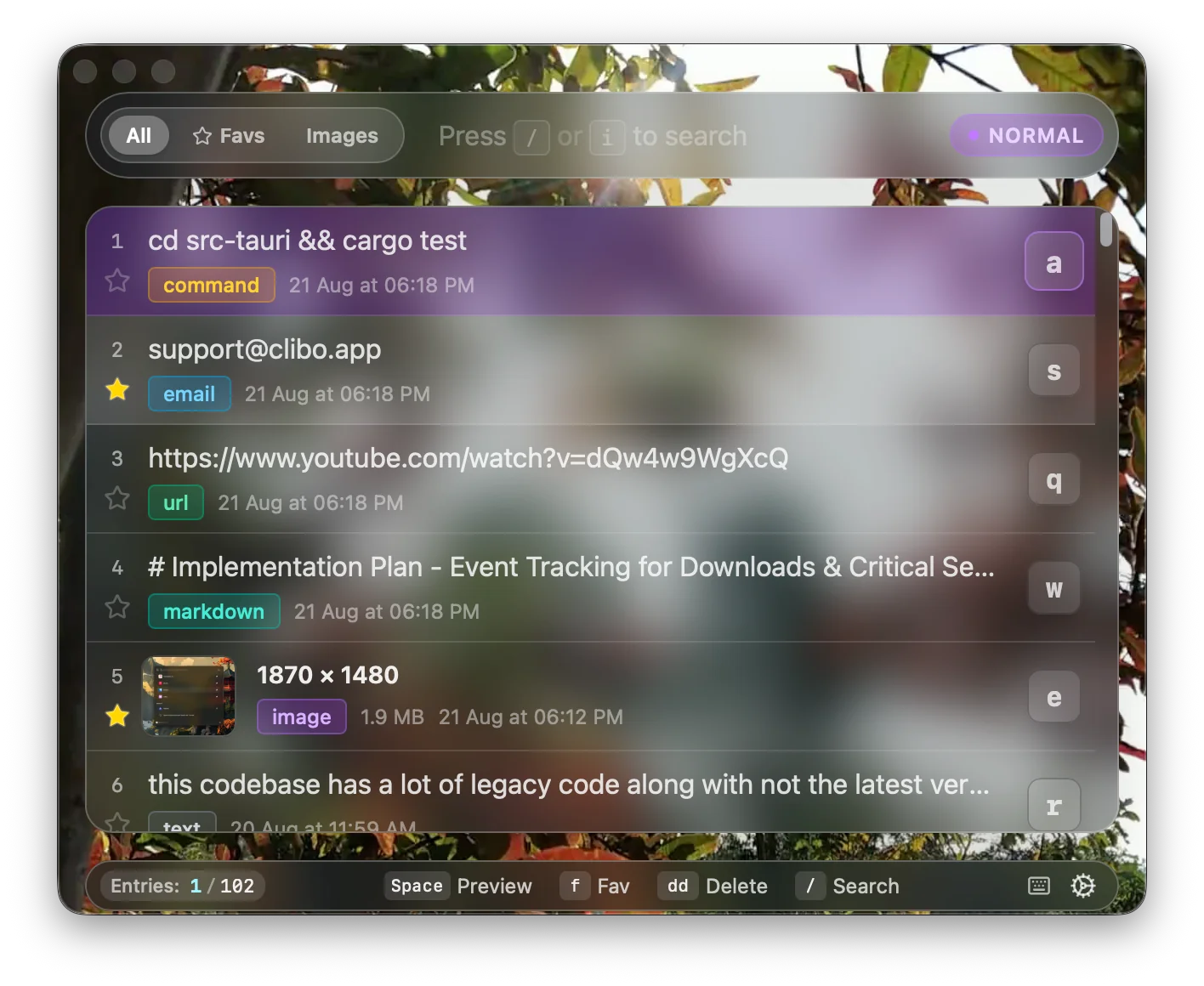
Why Developers Actually Switch Clipboard Manager Apps (Maccy, Alfred, Paste → Clibo)
Honest comparison of Maccy, Alfred, Paste, and Clibo clipboard manager apps. Real trade-offs, no strawmen — including when you should stay with your current tool.
The 2026 Mac Clipboard Manager Comparison Matrix: Speed, Privacy & Workflow
An objective, technical benchmark comparing Maccy, Raycast, Paste, Alfred, and Clibo across memory usage, invocation latency, privacy, and keyboard navigation.